Customer Care
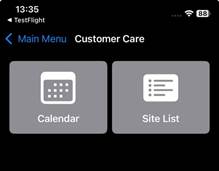
When the user enters the Customer Care area, two tiles are displayed: Customer Care Calendar and Customer Care Site List. Each tile provides a different view of the Customer Care jobs.
Customer Care Calendar
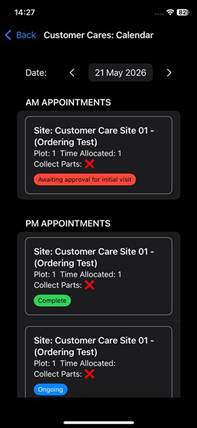
The Customer Care Calendar displays two separate lists: AM Appointments and PM Appointments, along with a date selector that allows the user to filter by a specific date. The date selector defaults to the current date when the page is opened. The jobs displayed within these tables are those that have a booked date matching the selected Calendar date.
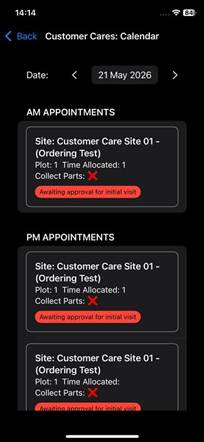
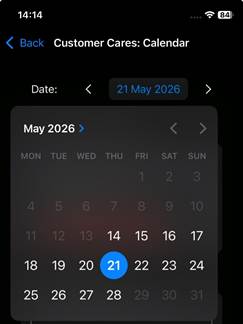
On the Mobile Application, the date selector allows the user to navigate within a limited range, enabling selection of dates up to one week in the past or one week in the future only.
The AM Appointments lists all Customer Care jobs scheduled for the selected date that are marked as occurring in the AM within the admin system. The PM Appointments lists all Customer Care jobs scheduled for the selected date that are marked as occurring in the PM within the admin system. However, if no AM or PM jobs exist for the selected date, the corresponding list will be hidden.
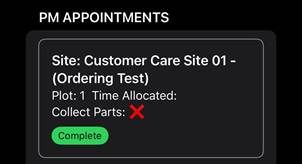
Each Customer Care job is displayed within its own tile, which presents key information relating to the job, as described below.
- Site – Displays the Site the Customer Care job is associated with.
- Plot – Displays the Plot the Customer Care job is associated with.
- Time Allocated – Displays the Time Allocated for the Customer Care job. This defaults to 1 hour but is determined by the value entered in the Hours Spent at Job (Minimum 1hr) field within the Customer Care Form.
- Collect Parts – This column displays either a ✓ or an ×, depending on whether the Customer Care job has been marked as requiring parts to be collected.
- Status – Displays the current Status of the Customer Care job, which can be one of the four statuses listed below depending on the stage the job is at.
- Awaiting Approval for Initial Visit – The Awaiting Approval for Initial Visit status is displayed in red and indicates that the Customer Care job has not yet been commenced by the Contract Manager or Customer Care Engineer.
- Approved for Initial Visit – The Approved for Initial Visit status is displayed in amber and indicates that the Customer Care job has been approved by an admin user.
- Ongoing – The Ongoing status is displayed in blue and indicates that the Customer Care job has been started but has not yet been completed.
- Complete – The Complete status is displayed in green and indicates that the Customer Care job has been marked as Completed.
Customer Care Site List
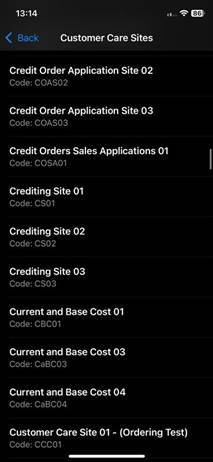
The Customer Care Site List displays Customer Care jobs in a list view, providing visibility of all Customer Care jobs for the selected Site.
When the Customer Care Site List is selected, the Mobile Application displays all Sites currently assigned to the Customer Care Engineer, allowing the user to select the required Site to view its associated Customer Care jobs.
Once a Site has been selected, the Customer Care List tiles are displayed, listing all Customer Care jobs for the selected Site within the previous week and the week ahead. The Customer Care Site List tiles display key information relating to each job, as described below.
- Ref Num – Displays the Reference Number for each Customer Care job.
- Plot – Displays the Plot assigned to each Customer Care job, identified by its Plot Number.
- Booked In Date – The Booked In Date displays the booked date for each Customer Care job.
- Status – Displays the current Status of the Customer Care job, which can be one of the three statuses listed below depending on the stage the job is at.
- Awaiting Approval for Initial Visit – The Awaiting Approval for Initial Visit status is displayed in red and indicates that the Customer Care job has not yet been commenced by the Contract Manager or Customer Care Engineer.
- Ongoing – The Ongoing status is displayed in blue and indicates that the Customer Care job has been started but has not yet been completed.
- Complete – The Complete status is displayed in green and indicates that the Customer Care job has been marked as Completed.
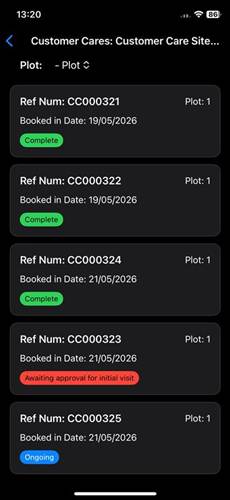
The Mobile Application contains a Plot dropdown filter within the Customer Care Site List. This filter displays all non-deleted Plots that exist on the selected Site, allowing the user to filter the list by Plot. When a Plot is selected, the list is filtered to display only the Customer Care jobs assigned to the selected Plot.
The user can select the required Customer Care job from the list table, and the Mobile Application will navigate them to the Customer Care Form.
Customer Care Form
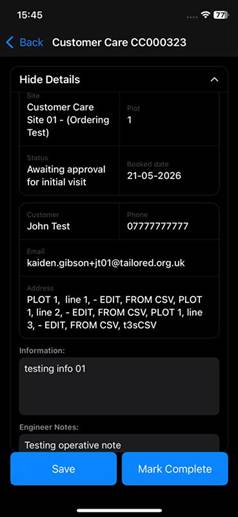
When the user selects a Customer Care job from the Customer Care Calendar or Site List, the Customer Care Details are displayed. This section shows key information relating to the job, as described below.
Customer Care Details:
The Customer Care Details are displayed by default when a Customer Care job is opened. The Customer Care Form is hidden while the details are visible; however, if the user selects the Hide Details button at the top of the screen, the details will be minimised, and the Customer Care Form will be displayed.
- Site – Displays the Site the Customer Care job is associated with.
- Plot – Displays the Plot the Customer Care job is associated with.
- Status – Displays the current status of the Customer Care job, which can be one of three possible outcomes depending on the stage the job is at.
- Awaiting Approval for Initial Visit – The Awaiting Approval for Initial Visit status indicates that the Customer Care job has not yet been commenced by the Contract Manager or Customer Care Engineer.
- Ongoing – The Ongoing status indicates that the Customer Care job has been started but has not yet been completed.
- Complete – The Complete status indicates that the Customer Care job has been marked as Completed.
- Booked Date – Displays the date for which the Customer Care job is booked.
- Customer – Displays the Customer’s Name that the Customer Care job relates to.
- Phone – Displays the Customer’s Phone Number that the Customer Care job relates to.
- Email – Displays the Customer’s Email Address that the Customer Care job relates to.
- Address – Displays the address associated with the Plot selected for the Customer Care job, including all three Address lines and the Postcode.
- Information – Displays any information entered for the Customer Care job by an admin user.
- Engineer Notes – Displays any Engineer Notes entered for the Customer Care job by an admin user.
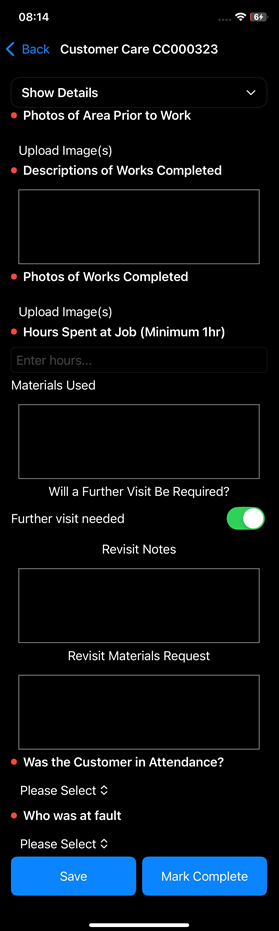
Customer Care Form:
The Customer Care Details are displayed by default when a Customer Care job is opened. The Customer Care Form is hidden while the details are visible; however, if the user selects the Hide Details button at the top of the screen, the details will be minimised, and the Customer Care Form will be displayed.
- Photos of area prior to work – This question allows the user to capture or upload photos of the area prior to work being completed. The user can either select the Take Photo option to open the device camera and capture one or more images or select the Choose From Library option to open the device’s photo library and upload existing images.
- Description of Works Completed – This is a free-text field that allows the user to enter text describing the works they have completed.
- Photos of Works Completed – This question allows the user to capture or upload photos of the works completed. The user can either select the Take Photo option to open the device camera and capture one or more images or select the Choose From Library option to open the device’s photo library and upload existing images.
- Hours spent at Job (Minimum 1hr) – This field accepts any numeric value, allowing the user to record the time spent on the job.
- Materials Used – This is a free-text field that allows the user to enter text describing the Materials that they’ve used to complete the job.
- Will a further visit be required? – This is a checkbox question used to indicate whether a further visit is required. It can be left unselected, or if selected, it will display two additional fields: Revisit Notes and Revisit Materials Request.
- Revisit Notes – This is a free-text field that allows the user to enter notes explaining why a revisit is required.
- Revisit Materials Requests – This is a free-text field that allows the user to enter details of any Materials required for the revisit.
- Was the Customer in Attendance – This is a dropdown question containing two options, Yes and No, allowing the user to indicate whether the customer was in attendance.
- Who was at fault? – This is a dropdown question that contains predefined options configured within the admin system.
The user can save or mark the Form as complete by either selecting the Save or Mark Complete button.
Viewing a Completed Customer Care Job
The user can view a completed Customer Care job within the Customer Care Calendar by selecting the relevant row from either the AM Jobs or PM Jobs table.
Completed jobs have a Complete status showing as green within the calendar tile to clearly indicate their status.
When a completed job is selected, the portal displays the Customer Care Form in a read-only view.
The user can also select and hold any uploaded images to display a View option. When selected, the image is displayed within a popup window.