
Consumables
The Consumables area allows the user to view and manage Consumables Orders for Sites to which they are currently assigned. Any Consumables Orders that the user has previously created on Sites they are no longer assigned to will also remain visible.
When the user enters the Consumables area, the portal displays all Consumables Orders created by the signed-in Contract Manager.
The Consumables table contains two columns that display information about the progress of each Consumables Order, as described below.
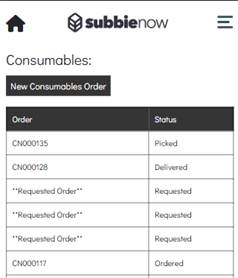
- Order – Displays the Order Number for the Consumables Order. If the Consumables Order has been requested but has not yet been Approved & Sent by an admin user, this will display **Requested Order**. Once the Consumables Order has been Approved & Sent, this field will display the unique Consumables Order Number assigned to the order.
- Status – Displays the current Status of the Consumables Order, which can be one of four statuses as described below.
- Requested – The Requested status is displayed when the Consumables Order has been requested but has not yet been Approved & Sent by an admin user.
- Ordered – The Ordered status is displayed when the Consumables Order has been Approved & Sent by an admin user but has not yet been Picked or Delivered.
- Picked – The Picked status is displayed when the Consumables Order has been Approved & Sent by an admin user and has subsequently been marked as Picked.
- Delivered – The Delivered status is displayed when the Consumables Order has been Approved & Sent by an admin user and has subsequently been marked as Delivered.
Creating a New Consumables Order
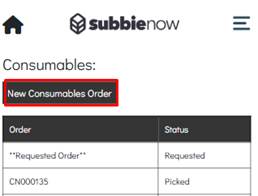
To create a new Consumables Order on the portal, the user can enter the Consumables area and select the New Consumables Order button located above the left-hand side of the table.
When this is selected, the system will navigate the user to a new Consumables Order page, where they can begin the Site, Operative, Requested For and Consumables Selection Process.
Site, Operative, Requested For & Consumables Selection Process
This page allows the user to specify the relevant Site, Date and Consumable Items for the Consumables Order, as described below.
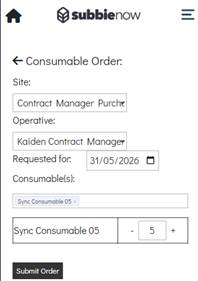
- Site – This dropdown lists all Sites the user is currently assigned to, allowing them to select the relevant Site for which the Consumables Order will be created.
- Operative – The Operative dropdown lists all users currently assigned to the selected Site, allowing the Contract Manager to assign an Operative to the Consumables Order.
- Requested For – This is a date selector that allows the user to choose the date for which the Consumables Order is Requested For.
- Consumable(s) – This is a multi-select field that lists all non-deleted Consumable Items, allowing the user to select the required item(s) to include in the Consumables Order. Each time a Consumable Item is added, it will be displayed in a table below the multi-select, where the user can enter a Quantity for each item.
The Consumables table lists the name of each Consumable Item that has been added, along with a Quantity field that accepts any numeric value and defaults to 1. There is no limit on the quantity of a Consumable Item that can be requested.
The user can enter the required value directly into the field or use the – and + icons to decrease or increase the Quantity in increments of 1.
Viewing a Consumables Order
The user can view a Consumables Order in the Operative Portal by selecting it from the list. The system will then display a detailed view of the selected Consumables Order. Each element on this page is described below.
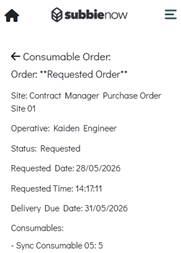
- Order – Displays the Order Number for the Consumables Order. If the Consumables Order has been requested but has not yet been Approved & Sent by an admin user, this will display **Requested Order**. Once the Consumables Order has been Approved & Sent, this field will display the unique Consumables Order Number assigned to the order.
- Site – Displays the Site that the Consumables Order is associated with.
- Operative – Displays the Operative that was assigned to the Consumables Order.
- Status – Displays the current Status of the Consumables Order, which can be one of four statuses as described below.
- Requested – The Requested status is displayed when the Consumables Order has been requested but has not yet been Approved & Sent by an admin user.
- Ordered – The Ordered status is displayed when the Consumables Order has been Approved & Sent by an admin user but has not yet been Picked or Delivered.
- Picked – The Picked status is displayed when the Consumables Order has been Approved & Sent by an admin user and has subsequently been marked as Picked.
- Delivered – The Delivered status is displayed when the Consumables Order has been Approved & Sent by an admin user and has subsequently been marked as Delivered.
- Requested Date – Displays the Requested Date on which the Consumables Order was requested.
- Requested Time – Displays the Requested Time at which the Consumables Order was requested.
- Delivery Due Date – Displays the Requested For date that was entered when the Consumables Order was created. This is only displayed for Consumables Orders that have been Approved & Sent.
- Consumables – Displays the list of Consumable Items included in the Consumables Order, followed by a colon and a number indicating the Quantity ordered for each item.