Sites Plot Import
The Plot Import area allows users to import address information for each Plot on the Site.
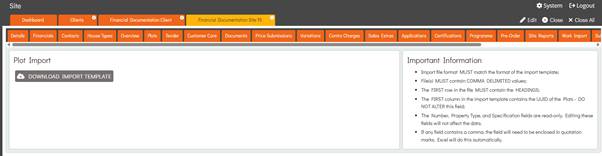
When in read-only mode, this section displays a Download Import Template button along with key information about the import process.
Downloading Plot Import Template
To download the Plot Import Template, the user can select the Download Import Template button. The system will export a CSV file containing a row for each Plot on the Site.
The template includes the following columns: UUID, Number, Property Type, Specification, Address1, Address2, Address3, and Postcode.
Users only need to update the Address and Postcode fields. Modifying the other columns will not affect the import, as they are read-only. However, changing the UUID may cause the import to fail, as it will no longer match the corresponding Plot.
Users can enter the relevant Address and Postcode for each Plot in the corresponding columns. Once updated, the template is ready for import into the system.
If a Plot already has its Address and Postcode entered in the Plot Details page, these values will appear in the downloaded template. Users can update this information in the template if needed, and the system will apply the changes to the Plot Details page when the import is performed.

Performing a Plot Import
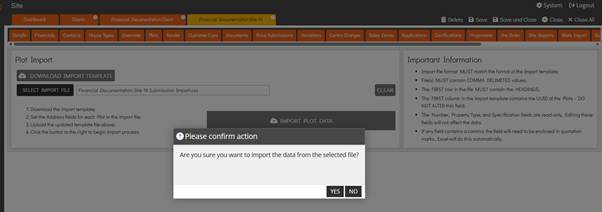
Once the Import Template is ready, the user can enter Edit mode and select the Select Import File button. This opens the File Explorer, allowing the user to choose the template file for upload.
If needed, the user can select the Clear button to remove the uploaded file and choose a different one.
After a file has been uploaded, the Import Plot Data button becomes enabled. Selecting this button prompts a confirmation message asking if you are sure you want to perform the Plot Import. Selecting Yes will start the import, and the system will update the relevant Plot Addresses and Postcodes in the Plot Details page.